Switch to the Code tab
Most of what follows lives in the Code tab of the Claude desktop app.
Don't let the word "code" put you off. You don't write code there. You type what you want in plain English, the same way you would in a normal chat. The difference is that the Code tab can work with your files, run several jobs at once and use everything below.
Run Claude like a team
One chat can now start other chats, keep track of them and report back to you.
Nested sessions: one chat, many workers
A session is one chat in your sidebar. A session can now start its own sessions. They sit indented under the chat that started them, they work at the same time, and each one reports back when it finishes.
- In one chat, ask for several pieces of work at once.
- Tell Claude to start a nested session for each piece.
- Watch them appear under the main chat in your sidebar.
- Click into any one of them to steer it directly, like a normal chat.
The master session: an assistant for your AI
One session can see your other sessions. So you can pick one chat, pin it to the top, and make it the place you run everything from.
- Pick a chat and pin it.
- Tell Claude it is your master session.
- Ask it which chats are waiting on you for a decision.
- Ask it to start new chats or sort old ones into sections for you.
Projects: work that carries on when your laptop is closed
Projects are the cloud version of the same idea. Nested sessions run on your computer, so they stop if it goes to sleep. Projects run in Anthropic's cloud, so they keep going.
Projects also give you shared memory, so a rule you set once applies to every chat in the project, and an overview page that shows what is done, what is running and what is waiting on you.
Stay in control
See what Claude is doing, ask about it without interrupting it, and keep your chats organised.
The session rail: what's loaded, where it runs
Click show session rail at the top right of a chat. A panel of cards opens on the right.
Settings tip: in the app settings you can make every new chat ready for Remote Control automatically, and keep your computer awake while Claude works.
Side chats: ask without interrupting
When Claude is halfway through a long job and you want to know how it is going, don't ask in the main chat. That interrupts the work.
- Open a side chat from the menu at the top right, or type
/btw. - A second chat opens next to the main one. It can read everything the main chat has done.
- Ask it what Claude has done so far, or how close it is to finishing.
Side chats are saved, so you can open several and come back to any of them.
Split view: several chats on one screen
- Right-click a chat in the sidebar and choose Open in, then Split view. You can also drag a chat to where you want it in the window.
- On a Mac, hold Option and click a chat for the same result.
- Press Command and minus to zoom out and fit more on screen.
Sections: folders for your chats
- Click the three dots next to any chat and choose Move to section.
- Create a new section and name it: one per client, project or part of your business.
- Drag other chats into it.
Or skip the clicking and ask Claude to sort your chats into sections for you. The prompt is below.
Make things inside Claude
Claude now has its own docs, slides, design canvas and dashboards. Each one is an artifact: a canvas you and Claude work on together.
Which artifact types you see depends on your plan, and some are still in beta.
AI-powered artifacts: a dashboard your team can question
This is the one I would try first. An AI-powered artifact has Claude inside it, so the people you share it with can ask it questions.
- In Settings, under Capabilities, switch on AI-powered artifacts.
- Build a dashboard, or open one you already have.
- Ask Claude to add a question box inside it. The prompt is below.
- Share the link. Your team types questions in plain English and gets answers from the dashboard's data, without learning Claude Code.
Save your limits
Small habits that stop Claude spending your usage on things you don't need.
Slash commands worth knowing
Type / in the chat box to see the full menu. These are the ones I would learn first.
| Command | What it does |
|---|---|
/skill-doctor | Shows what each of your skills costs in Claude's working memory and how often you use it, so you can switch off the ones you never use. |
/advisor | Lets you run a cheaper model most of the time and bring in a stronger model for the big decisions. |
/rewind | Takes the chat back to an earlier point. Claude's undo button. |
/doctor | Runs a checkup on your setup and offers to fix what it finds. |
/recap | A short summary of where a chat is up to. |
/insights | A report on how you use Claude Code, with features to try. |
/output-style | Changes how Claude talks to you, for example shorter and plainer. |
/btw | Opens a side chat. |
Mods: change how Claude looks and works
A mod is a small add-on for the Claude desktop app: a bar, a panel, a status line or a slash command. You make one by describing it to Claude.
A useful first mod is a slim bar above the chat box that shows how much usage you have left and whether the chat's prompt cache is warm or cold.
Keyboard shortcuts
- Press Escape twice to jump back to an earlier prompt.
- Press Command and slash on a Mac to see every shortcut, including the one that opens Claude from anywhere on your computer and the one for voice dictation.
Copy, paste, adjust
Each prompt matches a feature above. Paste it into a chat in the Code tab and swap in your own details.
Run /context. Then list everything that loads into my chats before I type: my CLAUDE.md, memory files, skills and MCP tools. Show roughly how much space each one takes. Tell me which I could shorten, merge or turn off without losing anything I use. Change nothing until I say yes.
I'm launching a new online course for small business owners. Do these three at the same time and start a nested session for each one: a sales page, a five-email welcome sequence, and three ad variations. Report back to this chat when each one is done.
You're my master session. Keep track of my other sessions from here. First, tell me which of my chats are waiting on me for a decision, with one line on what each one needs from me.
Look at my chats and group them into sections, one per client, project or part of my business. Show me the plan first, then create the sections and move the chats once I say yes.
Add this to the project memory so every chat in this project follows it: [your rule, for example "Write in British English and keep emails under 150 words"].
What has the main chat done so far, what is it working on right now, and roughly how much is left?
Add a question box to this dashboard. Anyone who opens the link should be able to type a question in plain English and get an answer based only on the data on this dashboard. If the data can't answer the question, say so instead of guessing.
Make me a mod for the Claude desktop app: a slim bar above the chat box that shows how much of my usage is left this week and whether this chat's prompt cache is warm or cold. Keep it small and easy to read.
Muhammad Asmal
Muhammad Asmal is an AI business growth strategist and the founder of Asmal Digital and AI Lead Builder. He helps business owners put AI to work in practical ways, drawing on more than 13 years of digital marketing agency experience. He has delivered in-person AI workshops across the US, South Africa and Dubai, and his AI education content has passed 10 million views across TikTok and Instagram.
Build with a community behind you.
Join the AI Lead Builder community for practical support putting AI to work in your business.
Your membership brings together weekly coaching with Muhammad, training and call replays, business software, and the Agency OS plugin.
Learn and get help
Weekly coaching, training, and a community of business owners.
Build and put it to use
Agency OS plus software for your CRM, funnels, and follow-up.
Hear it from members, on camera
Straight from the community chat
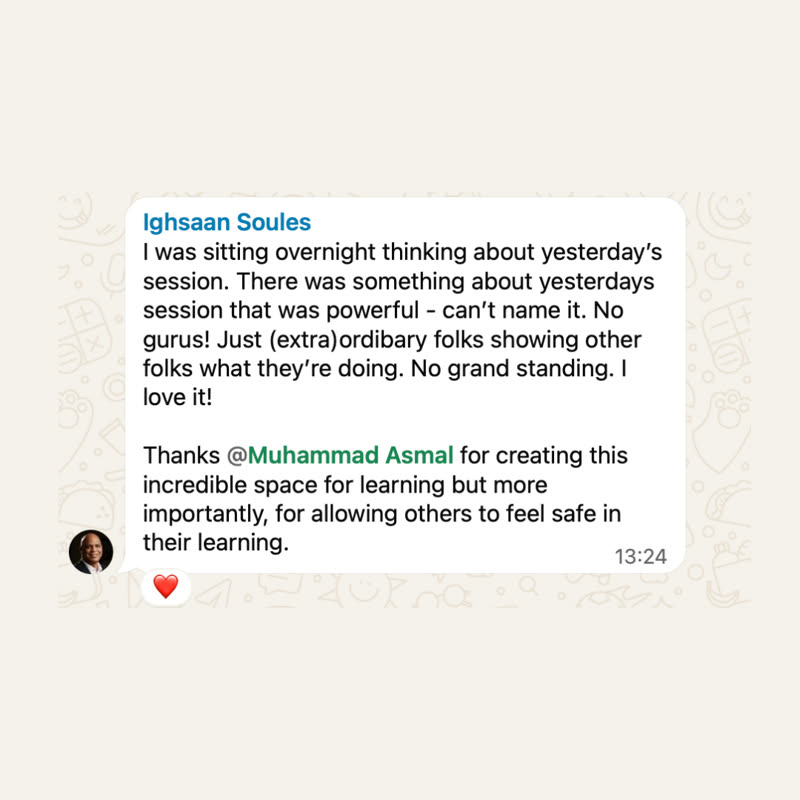

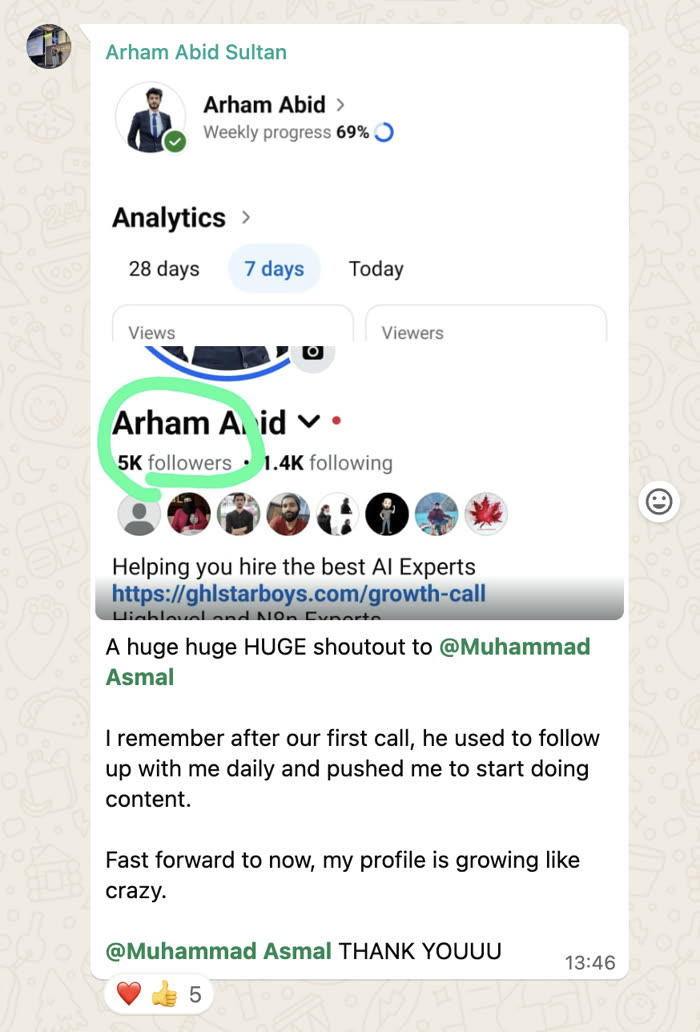
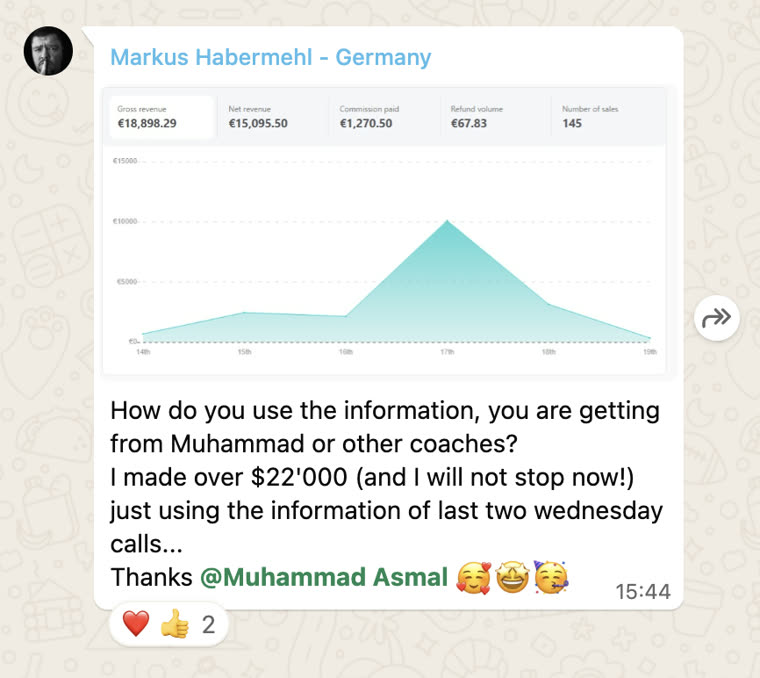
Shared with each member's permission. Individual results vary.
Cancel anytime.
Join AI Lead BuilderSee the membership details and current offer on the next page.